

Introduction
As natural language processing (NLP) continues to evolve, large language models (LLMs) are becoming essential for a variety of applications, such as chatbots and content creation. As a result, powerful computing resources are a must to get the best performance out of these models. Fortunately, Azure’s GPU-optimised virtual machines (VMs) provide a robust solution, especially for those who prioritise data privacy. In this article, we will explore the capabilities of Azure GPU VMs for running open source LLMs and how to get the most out of this technology.
Choosing the Right Open-Source LLM
Selecting the right open-source LLM for your needs involves three key steps:
Define Your Tasks and Requirements
First, clearly define what you need the model to do—whether it’s text generation, translation, summarization, or answering questions. Then, consider any specific requirements like real-time processing, model size, or resource efficiency.
Understand the Models Available
If you decide to use Hugging Face’s transformers and inference framework, you will need to narrow your choice to the supported open-source LLM models. After defining your goal in the previous step, narrow your choices to the models that perform well in your focus area.
Understanding Azure GPU Instances
Azure offers a range of GPU virtual machines to suit different computing needs. These include NVIDIA GPUs such as the V100, P100, A10, and A100, among others, allowing you to choose the best setup for your specific LLM applications. These GPUs are designed for the intensive tasks involved in training and running large language models.
Moreover, LLMs can also run on a VM family designed specifically for Artificial Intelligence / Machine Learning (AI/ML) workloads. Other VM families are tailored for virtual desktop (VD) applications. The table below summarises the common Azure GPU VM families. If you’re planning to run an LLM, your focus should be on those designed for AI/ML.
You want to use the most modern GPU (see Released column)
| Family | Version | GPU | Architecture | VRAM | Status | Purpose | Released | Price (*) |
|---|---|---|---|---|---|---|---|---|
| NC | 1 | K80 | Kepler 2.0 | 24 GB | Retired | AI/ML | Nov 2014 | $851 |
| ND | 1 | P40 | Pascal | 24 GB | Retired | AI/ML | Sep 2016 | $1,957 |
| NV | 1 | M60 | Maxwell 2.0 | 8 GB | Retired | VD | Aug 2015 | $996 |
| NC | 2 | P100 | Pascal | 16 GB | Retired | AI/ML | Jun 2016 | $1,957 |
| NC | 3 | V100 | Volta | 16 GB | Active | AI/ML | Mar 2018 | $2,790 |
| NC T4 | 3 | T4 | Turing | 16 GB | Active | AI/ML/VD | Sep 2018 | $480 |
| NV | 3 | M60 | Maxwell 2.0 | 8 GB | Active | VD | Aug 2015 | $1,040 |
| NC A100 | 4 | A100 | Ampere | 80 GB | Active | AI/ML | Jun 2020 | $3,485 |
| NV A10 | 5 | A10 | Ampere | 24 GB | Active | VD | Apr 2021 | $3,036 |
| NC | 5 | H100 | Hopper | 40 GB | Active | AI/ML | Mar 2023 | $6,628 |
| NC | 5 | H100 | Hopper | 80 GB | Active | AI/ML | Mar 2023 | $13,257 |
For example, VM “NC24ads A100 v4” is the smallest instance of
- Family: NC A100
- Version: 4
- GPU: A100
Additionally, this VM includes the code “24ads”, which means:
- 24 – CPU cores
- “a” – AMD processor (no letter “a” is for Intel)
- “d” – temporary storage included, here we have 958 GiB of temporary storage
- “s” – premium disks supported
Microsoft typically releases new SKUs in regions with the highest demand first. As more units become available, they are added to additional regions. Check the current availability on the Azure Products by Region page.
The table below shows the availability of the above GPU instance as of the time of this post.
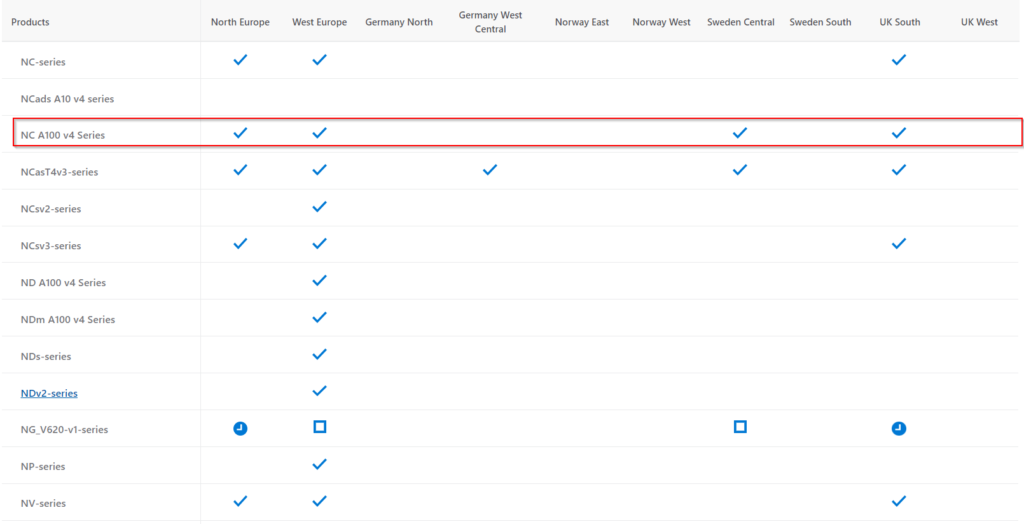
You can also visit the page Products available by region to check the current availability.
Choose your GPU VM SKU and pricing model
Before selecting a GPU VM size, you need to understand the model’s specific requirements since the model has to fit into the GPU VRAM. For example, we consider Mistral-7B-Instruct-v0.3,
- Model Size: The “7B” indicates that the model has 7 billion parameters.
- VRAM Requirements: A model of this size typically requires substantial VRAM. Estimate around 10-20 GB of VRAM for efficient inference and potentially more for training.
- Compute Power: Consider the number of GPU cores and the overall compute capability needed.
- Quantization: Allows for lowering memory requirements at the expense of model “intelligence”.
Azure’s spot instances can significantly lower compute costs, but there are important considerations to keep in mind. Spot instances can be up to 90% cheaper than standard pay-as-you-go VMs. However, workloads must be fault-tolerant and can handle interruptions, such as batch processing, development, testing, and certain types of machine learning workloads.
Setting Up Your Azure GPU Virtual Machine
Before deploying an LLM, set up your Azure GPU virtual machine correctly. This includes choosing the right GPU type, determining the number of GPUs, and selecting your preferred operating system. Set up necessary dependencies and drivers, like CUDA, to ensure your LLM runs smoothly.
Checking GPU
Make sure your VM has GPU card:
lspci|grep -i nvidiaInstalling Dependencies
Update and Install Dependencies:
sudo apt-get update
sudo apt-get install -y docker.io
Ensure Docker is running:
sudo systemctl start docker
sudo systemctl enable docker
Install gcc and make if it is missing:
gcc --version
Command 'gcc' not found, but can be installed with:
sudo apt install gcc

sudo apt install make
Installing NVIDIA Drivers
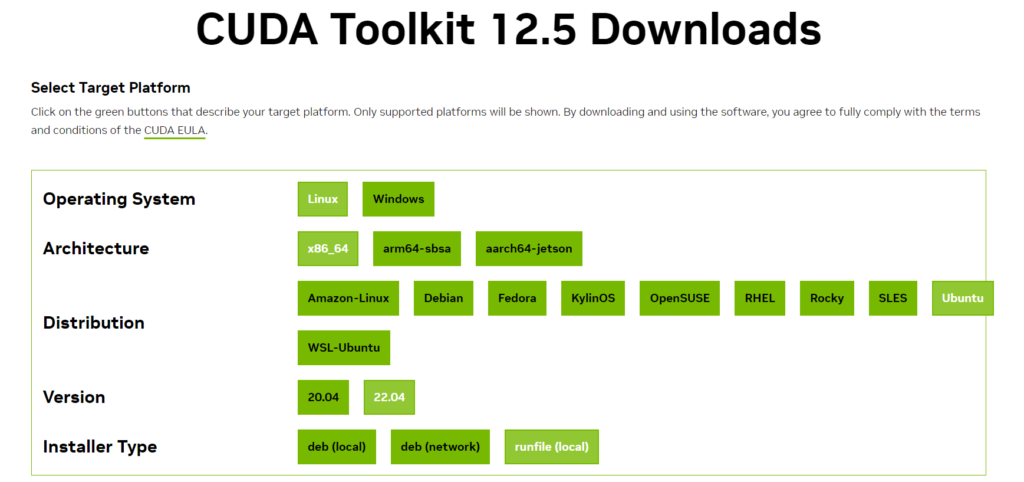
Install the NVIDIA Container Toolkit. You can follow Nvidia’s guide for your operating system, the NVIDIA CUDA Installation Guide for Linux, or follow these steps if your system is Ubuntu 22.04.
During the CUDA Toolkit installation, you can choose one of three installer types. I found that runfile is the easiest, but of course, you can choose the one that suits you best.
$ sudo sh cuda_12.5.0_555.42.02_linux.run
===========
= Summary =
===========

Driver:   Installed
Toolkit:  Installed in /usr/local/cuda-12.5/

Please make sure that
-   PATH includes /usr/local/cuda-12.5/bin
-   LD_LIBRARY_PATH includes /usr/local/cuda-12.5/lib64, or, add /usr/local/cuda-12.5/lib64 to /etc/ld.so.conf and run ldconfig as root

To uninstall the CUDA Toolkit, run cuda-uninstaller in /usr/local/cuda-12.5/bin
To uninstall the NVIDIA Driver, run nvidia-uninstall
Logfile is /var/log/cuda-installer.log
Alternatively, follow this Azure article: Install NVIDIA GPU drivers on N-series VMs running Linux. The important part is that the NVIDIA utility nvidia-smi shows the driver version and GPU details, as in the picture below.
$ nvidia-smi
Sat May 13 21:28:31 2024
+-----------------------------------------------------------------------------------------+
| NVIDIA-SMI 555.42.02              Driver Version: 555.42.02      CUDA Version: 12.5     |
|-----------------------------------------+------------------------+----------------------+
| GPU  Name                 Persistence-M | Bus-Id          Disp.A | Volatile Uncorr. ECC |
| Fan  Temp   Perf          Pwr:Usage/Cap |           Memory-Usage | GPU-Util  Compute M. |
|                                         |                        |               MIG M. |
|=========================================+========================+======================|
|   0  Tesla T4                       Off |   00000001:00:00.0 Off |                  Off |
| N/A   44C    P0             26W /   70W |       1MiB /  16384MiB |     11%      Default |
|                                         |                        |                  N/A |
+-----------------------------------------+------------------------+----------------------+

+-----------------------------------------------------------------------------------------+
| Processes:                                                                              |
|  GPU   GI   CI        PID   Type   Process name                              GPU Memory |
|        ID   ID                                                               Usage      |
|=========================================================================================|
|  No running processes found                                                             |
+-----------------------------------------------------------------------------------------+
Installing CUDA
Once you have installed the CUDA drivers, you should install the NVIDIA Container Toolkit. Managing any workload will be much easier if it is run as a container. Of course, you must have the Docker engine already set up on your VM. If not, follow these guides to do so. Similarly, as with CUDA drivers, run nvidia-smi as a sample docker workload relying on GPU and CUDA drivers.
Note the NVIDIA CUDA Toolking might experience problems when running with docker-compose. In our example, we will deploy the model directly using the docker command line.
distribution=$(. /etc/os-release;echo $ID$VERSION_ID)
curl -s -L https://nvidia.github.io/nvidia-docker/gpgkey | sudo apt-key add -
curl -s -L https://nvidia.github.io/nvidia-docker/$distribution/nvidia-docker.list | sudo tee /etc/apt/sources.list.d/nvidia-docker.list
sudo apt-get update
sudo apt-get install -y nvidia-docker2
sudo systemctl restart docker
Verify if you can run the GPU workload as a docker container:
sudo docker run --rm --runtime=nvidia --gpus all ubuntu nvidia-smiNow, you need to move to the next step to deploy the model.
Deploying LLM as a Docker Container
Once you have chosen your LLM and optionally fine-tuned it, it’s time to deploy it on the VM. If you get your LLM from Huggingface, you first need to generate the API key and accept the terms and conditions on the card for a given model before you can download it.
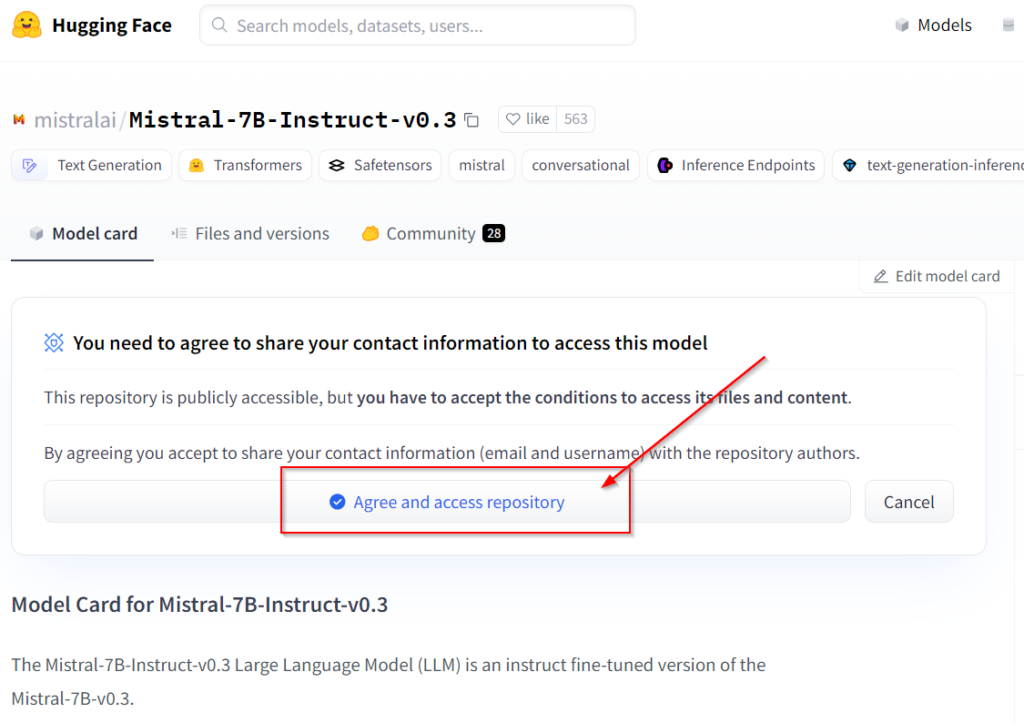
Of course, you cannot run the LLM model directly. For text generation models, you need the Huggingface text generation inference toolkit (in short: tgi). You can get it from Github container registry ghcr.io/huggingface/text-generation-inference:2.0.4.
You can find the full documentation in the repository README.
sudo docker run --gpus all -it \
	--name mistral_container \
	--detach \
	--volume $volume:/data  \
	--env HUGGING_FACE_HUB_TOKEN=$TOKEN  \
	--model-id $model  \
	--num-shard 1  \
	--port 8080:80 \
	ghcr.io/huggingface/text-generation-inference:2.0.4
In the example above, we expose LLM API on the port 8080. However, you should choose the port that suits your use case. Note that it will take a significant amount of time to download the image and the model (30 min).
Now, you should be ready to test the model:
curl -X 'POST' \
  'http://localhost:8080/generate' \
  -H 'accept: application/json' \
  -H 'Content-Type: application/json' \
  -d '{
  "inputs": "<s> [INST] What is your favourite condiment? [/INST]</s>"
}'
Performance Optimization Tips
To further enhance your LLM’s efficiency on Azure GPU VM, consider performance optimization strategies. These include adjusting batch sizes, precision tuning (quantization), and mixed-precision training techniques. Such optimizations can significantly impact both inference and training speed.
By following these guidelines, you can maximize the benefits of using Azure GPU VMs for your open-source LLM applications, ensuring high performance and cost efficiency.
In the next blog, I will show you how to deploy an LLM using Docker Compose or Kubernetes.
